Microsoft Teams
Microsoft Teams can be used as a notification destination in Causely.
All Microsoft Teams delivery runs through the Causely Mediator.
How you define Microsoft Teams destinations depends on your setup:
-
Managed Notifications (recommended)
Routing rules and Microsoft Teams credentials are configured in the Causely UI. The UI stores configuration that the Mediator reads at runtime. Microsoft Teams delivery also requires a one-time Teams Workflow setup, described below. -
Mediator-based configuration (advanced)
Define Microsoft Teams destinations programmatically with environment variables or Kubernetes secrets instead of the UI. Uses the same Mediator delivery path as managed notifications.
For routing rules and filters in the UI, see Set up notification routing in the UI.
Managed Notifications (Recommended)
Most teams use Managed Notifications to route Causely insights to Microsoft Teams.
In this model:
- Notification routing and logic are defined in the Causely UI
- Microsoft Teams is used purely as a delivery destination
- Alerts are delivered as Adaptive Cards
To receive notifications in Microsoft Teams, you must configure a Teams Workflow to accept webhook requests and post Adaptive Cards to a channel.
Mediator-based configuration (advanced)
If you prefer not to use the UI, define Microsoft Teams destinations with a Kubernetes secret in the causely namespace:
apiVersion: v1
kind: Secret
type: Opaque
metadata:
  name: teams-notification-config
  namespace: causely
  labels:
    causely.ai/notif-config: Teams
stringData:
  notif_config_filters: "[]"
  notif_config_filters_enabled: "true"
  notif_config_global: "false"
  notif_config_name: teams
  notif_config_token: "causely"
  notif_config_type: Teams
  notif_config_url: "https://your-domain.webhook.office.com/webhookb2/..."
Replace the placeholder values with your actual Teams Workflow webhook URL.
Ensure the Microsoft Teams channel webhook is set up to accept incoming messages.
Microsoft Teams Workflow Setup
Microsoft Teams requires a Teams Workflow to receive webhook requests from Causely and render notifications as Adaptive Cards. This workflow is configured once per Team or Channel.
Step 1: Create a New Workflow
- In Microsoft Teams, navigate to Workflows
- Select Create
- Choose Create from blank
Step 2: Add the Webhook Trigger
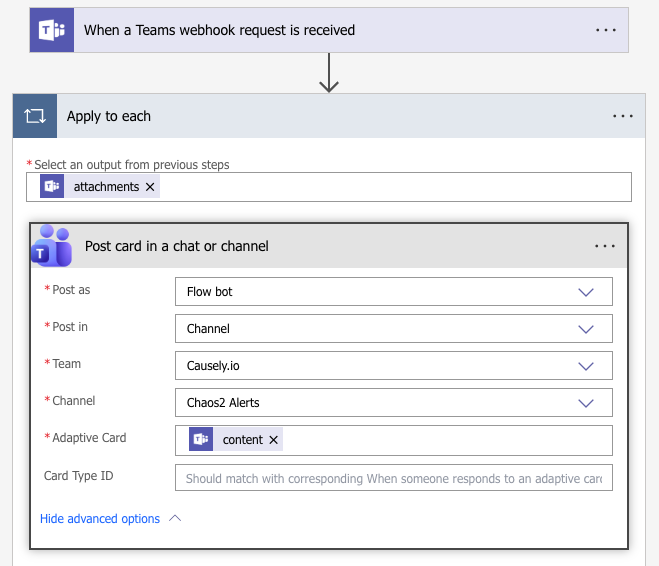
- Select the trigger When a Teams webhook request is received
- For Who can trigger the flow, select Anyone
This allows Causely to invoke the workflow using the generated webhook URL.
Step 3: Process Adaptive Card Attachments
Causely sends Microsoft Teams notifications as Adaptive Card attachments.
- Add a new step and select Apply to each
- For the input, select attachments from the webhook trigger output
This ensures each Adaptive Card attachment is handled correctly by the workflow.
Step 4: Post the Card to a Channel
Inside the Apply to each block:
- Add the action Post card in a chat or channel
- Configure the required fields:
- Post as: Flow bot
- Post in: Channel
- Team: Select your team
- Channel: Select the destination channel
- Adaptive Card: Select content from the attachments output
Example Workflow Configuration
The example below shows a completed Microsoft Teams Workflow with the webhook trigger, attachment handling, and channel post configured correctly.
Result
Once configured, each Causely notification triggers the Teams Workflow and posts a structured Adaptive Card into the selected channel, providing immediate, actionable context without alert noise.
Notification Payload Format
Causely sends structured alert payloads to Microsoft Teams, including summaries of causal insights and service impact context.
For an example payload and explanation of each field, refer to the Notification Payload Format page.